


The App That Tracks the Work
TrackTik is the guard management app Nationwide Security Service runs on every post. Your officers use it to check in when they arrive and check out when they leave, right from their phone.
Those check ins are the record of the hours worked. They feed our system and they back up your invoices. When TrackTik is set up correctly and used on every shift, your billing is clean and your firm gets paid without delay.
Why This Matters to You
No check in, no record. No record, slower payment and questions on the invoice.
Setting up TrackTik right is the single easiest thing your firm can do to get paid on time, every time.
Set Up the App in Three Steps
When your firm is approved, we text the setup details straight to your phone. Have that text open while you follow these steps.
The TrackTik app must be installed at least 2 hours before any shift, unless a Nationwide team member tells you otherwise. Failure to do so will result in a vendor infraction.
Download TrackTik
Install the free TrackTik app on the phone your officers will carry on post. Tap the badge for your phone type.


- Works on iPhone (iOS 13 and newer) and Android (8.0 and newer).
- When the app asks, allow location access. TrackTik uses it to confirm the officer is on site at check in.
- Keep the app installed. Do not delete it between shifts.
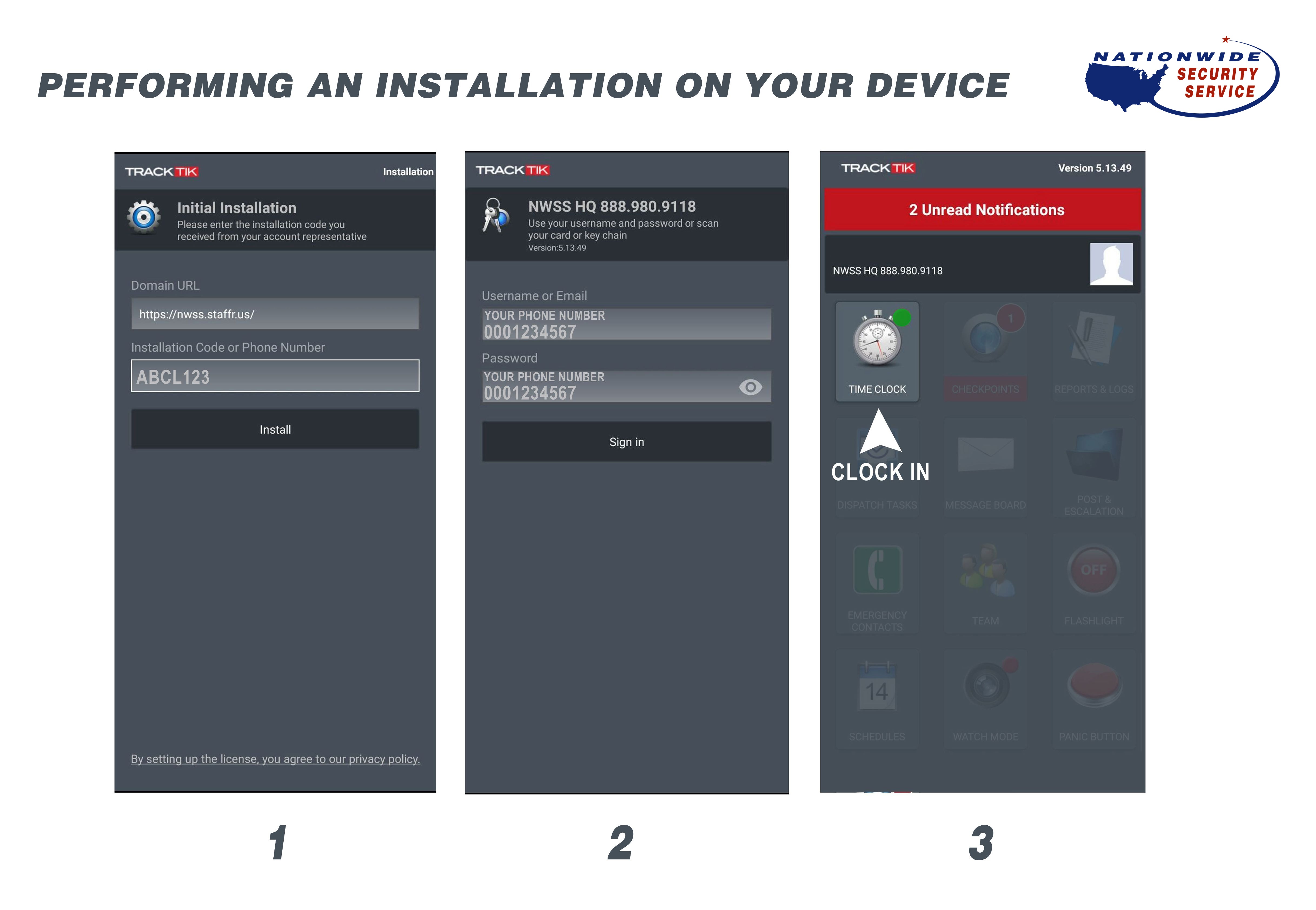
Open the App and Enter Your Setup Details
Open TrackTik and enter the information from the text message we sent you. Here is exactly what that message looks like:
- The domain is the same for everyone: https://nwss.staffr.us
- Your installation code, username, and password are personal to your firm. We text them to you. We never post them here.
- If your code does not work or has expired, do not reply to the text. Call us and we will resend it.
Log In and You Are Ready
Once your details are entered, log in. You are set. From now on your officers open TrackTik at the start of each shift to check in, and again at the end to check out.
That is the whole system. Check in on arrival, check out on departure, every shift.
Using TrackTik on the Job
Once your officers are logged in, this is what they do on every shift. Tap any image to see it full size.
Clock In to Start the Shift
On the main dashboard, tap Time Clock and clock in the moment your officer arrives on post. Clock out the same way at the end of the shift. This is what creates the hours that appear on your invoice.
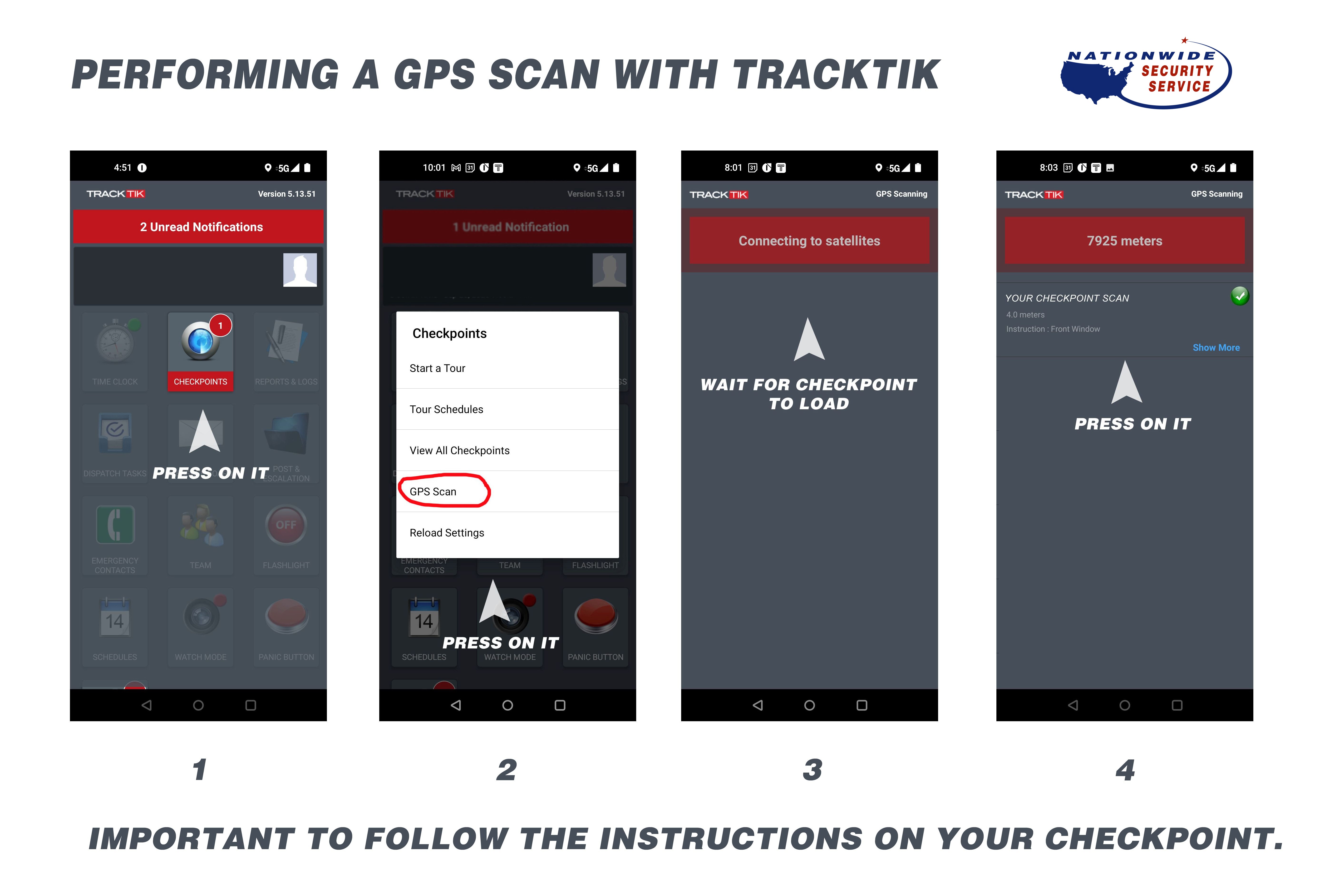
Perform a GPS Checkpoint Scan
On the dashboard, tap CHECKPOINTS, then choose GPS Scan. The app connects to satellites and loads the nearest checkpoint. When it loads, press on it and follow the instruction shown for that checkpoint. It is important to follow the instruction on each checkpoint.
Run a Guard Tour
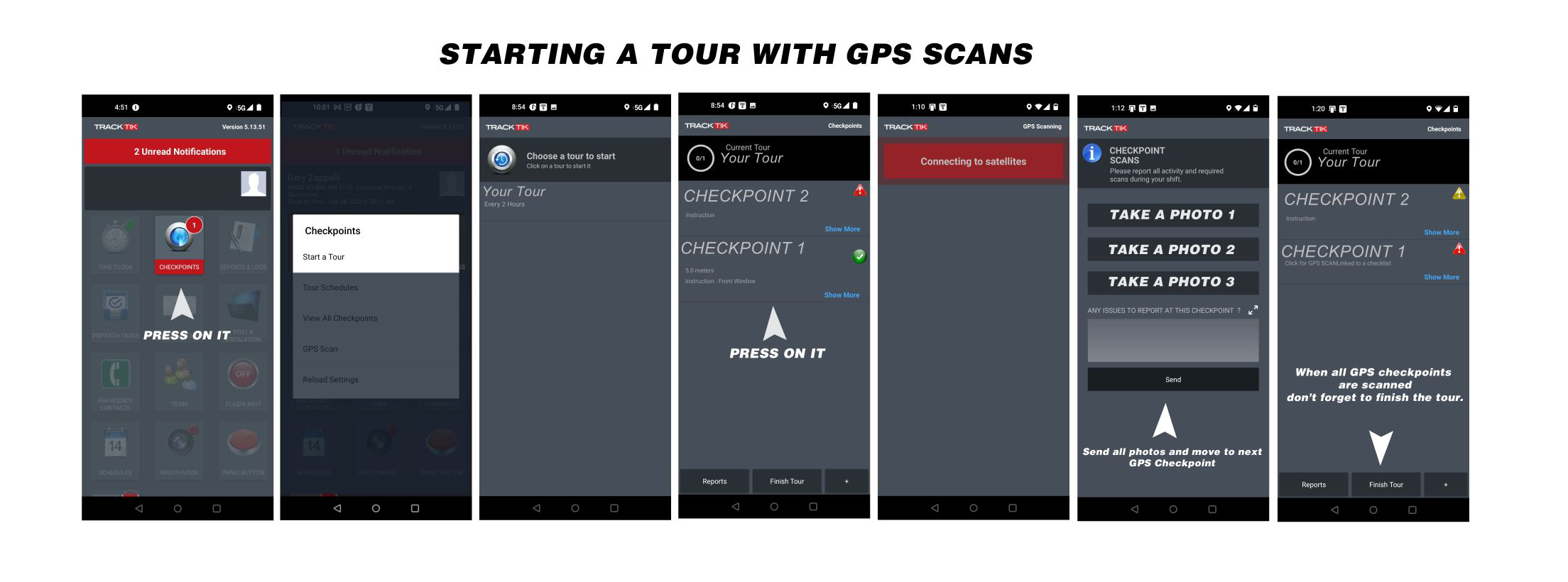
From the dashboard, tap CHECKPOINTS, then Start a Tour. Press the arrow to begin. At each stop, follow the prompt, take the photos it asks for, then send them and move to the next GPS checkpoint. When every checkpoint is scanned, the tour is complete. Do not forget to finish the tour.
Prefer to Watch a Walkthrough?
We recorded a short video that walks through the full setup on screen.
Need help? Do not reply to the text message. That number does not receive replies. To reach a person, call us at 1-888-980-9118 or open a ticket on the Support page. We will get you running.
Confirm You Have Read This
Check the box and enter your company email so we know your firm is set up on TrackTik.